How do you make a video on your small-business website accessible?
Make the message available beyond the video: check captions, describe important visuals, provide a transcript, and test the player.
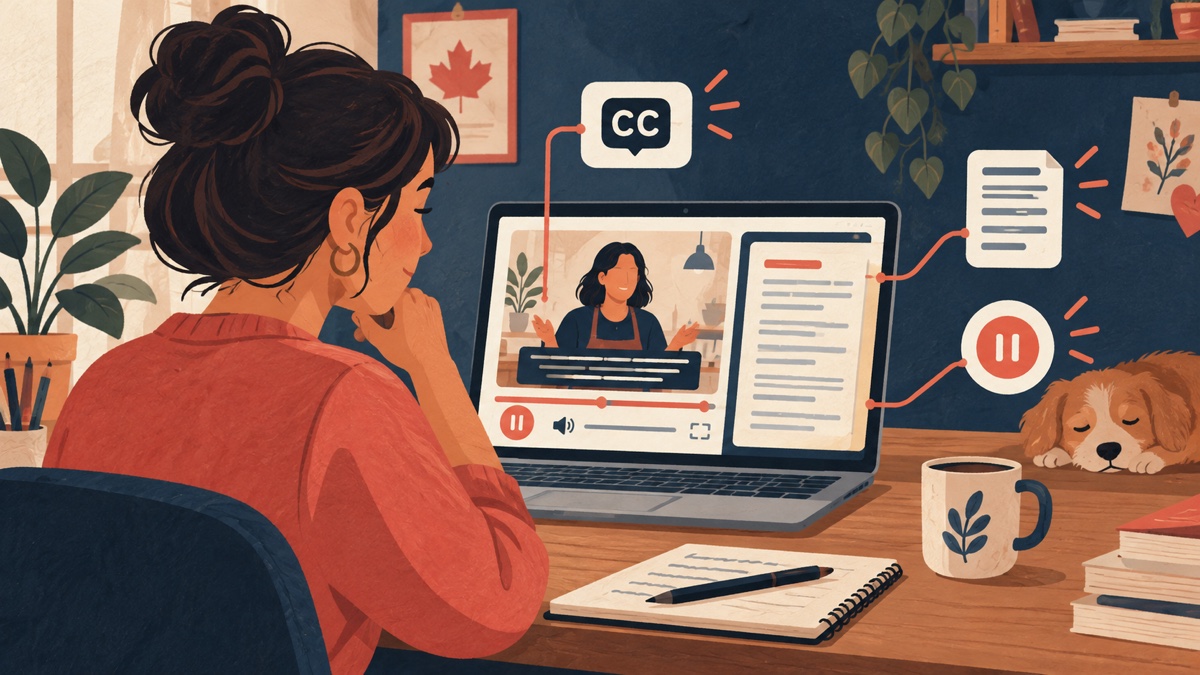
A short video can show a prospective customer how your service works. It can also leave them without an answer if they cannot hear the narration, see a detail on screen, operate the player, or watch at that moment. The fix is to plan the information around the video, not simply upload a file and add a play button.
For a prerecorded website video, start with accurate captions, a usable text alternative, a description of essential visuals, and controls that work with a keyboard and on a phone. Keep the core service facts in the page’s ordinary text as well. The video can help explain the offer, but it should not be the only route to understanding it or contacting you.
The need is real, though one survey cannot tell you how many of your own visitors encounter a barrier. Statistics Canada’s Table 13-10-0942-01 reports that 24.0% of persons with disabilities or long-term conditions aged 15 and over in Canada experienced at least one type of barrier when watching or listening to online content in 2024. That measure covers online content and devices generally, not small-business videos or visits to your website. It is based on a voluntary survey panel with a low cumulative response rate, so Statistics Canada advises caution about possible bias in the estimates. It does not measure how much any particular caption or design change will help.
Decide what the video adds
Before editing, write down the question the video should answer. A bookkeeping practice might use a short introduction to explain what happens after an inquiry. A repair shop might demonstrate a service process. These are illustrative situations, not claims about any specific business or a proven marketing tactic.
Then ask what a visitor would miss if the video never played. Put the service scope, location, eligibility, next step, and contact method in HTML text near the video. This gives people a quick way to scan and act, helps when a connection is poor, and makes the page useful even if the embed fails. A transcript can carry the full spoken explanation, but it should not substitute for clear page copy where a decision depends on it.
If the video is decorative, say so in the project brief and avoid making essential information appear only within it. If it explains a form or booking step, test the actual step too. An accessible video cannot repair an inaccessible form at the end of the journey.
Caption the meaning, then review it with the sound off
Captions provide the spoken words and relevant non-speech sounds in time with the video. They are different from translated subtitles: a French subtitle track can help a French-speaking viewer understand English speech, while same-language captions also need to convey sounds that matter. W3C’s captions guide makes that distinction and says automatic captions usually need significant editing before they meet accessibility needs.
Start with the creator’s script or an automatic draft, then compare it with the final audio. Check names, service terms, amounts, negations, speakers, and meaningful sounds. Make sure the text appears when the words are heard, can be turned on, and remains readable over bright and dark scenes. Ask someone unfamiliar with the edit to watch with the sound off and tell you what they understood. That check is useful, but it is not a substitute for testing with people who use captions regularly.
Do not assume a video is covered because captions exist on a social platform. Check the version and player embedded on your own page. A later edit to the audio can make an older caption file wrong. If you offer a distinct French version, review its audio, captions, on-page explanation, and contact path as a complete journey. A language switch alone does not translate the video.
Explain important visuals in words
Imagine a video that says, “Choose this option,” while a cursor points to an unspoken item on screen. Someone listening without seeing the picture does not know which option was chosen. The same problem arises with prices, labels, locations, or a chart shown only visually.
The simplest production choice is often to include the visual information in the narration: name the control, read the meaningful label, and explain the change being demonstrated. For existing footage, consider an audio-described version or a descriptive transcript that includes essential visual action. W3C’s visual-description guidance explains these approaches and why the right method depends on what the video communicates. A plain transcript of speech alone will not convey a silent diagram or gesture.
Keep the description selective. The goal is to communicate information needed to follow the video, not to narrate every camera movement. Ask whether a person who cannot see the frame can still understand the service point and the next action. If the answer depends on a silent detail, revise the narration, transcript, or video.
Publish a transcript people can find and use
Place a clearly labelled transcript link or expandable section beside the video. Use real text on the page, not an image of text or a downloadable file as the only option. Include speech, meaningful sounds, and descriptions of necessary visual information. Give it headings or speaker names where they make a longer explanation easier to follow.
The transcript lets a reader search, skim, and return to a detail without replaying the clip. It also provides a way to get the content when audio or video is inconvenient. W3C’s transcript guidance distinguishes a transcript of audio from a descriptive transcript that includes important visual information. Build the transcript from the approved final edit, and update it when the video changes.
Do not hide the only useful answer behind the video. If a visitor needs to know whether your team serves Gatineau, state that on the page. A transcript is a complete alternative to the media; clear surrounding copy is still good service writing.
Test the player as part of the page
The video file may be carefully captioned while the embedded player makes the captions or controls hard to use. W3C’s media-player guidance calls for keyboard operation, visible focus, clear labels, and sufficient contrast. Check that people can start and pause playback, change volume, turn captions on, and reach the transcript without a mouse. Do not rely on a hover-only control.
On a phone, check whether the player fits the screen, captions remain legible, and controls do not cover the text. Try enlarged text and a narrow viewport. If the player opens a full-screen mode, confirm that its controls remain understandable there. Review any consent or privacy notice tied to an external embed so that it does not block the page’s main answer.
Avoid playing sound automatically. A person may be reading in a shared space, using a screen reader, or simply trying to find a service detail. Give them a clear choice to play. If a moving background is necessary, assess whether it can be paused and whether it distracts from the page’s information. W3C’s media planning checklist separates requirements for prerecorded and live media; do not assume a checklist for one format covers every use.
Make ownership part of the publishing brief
For each video, keep the approved media file, caption track, transcript, language versions, and page URL together. Assign someone to check them whenever the service changes. If a price, process, service area, or contact route changes, update the page and every place the old fact appears in the video package. A date in a caption file is not enough evidence that the published page is current.
Before launch, have one person review content accuracy and another try the page with the sound off, keyboard only, and a phone. Ask a person who uses assistive technology to test the result when possible, especially when the video carries important instructions. Record the problems found and whether the page text provides a usable alternative while fixes are made.
The tradeoff is production and maintenance time. Captions, description, transcripts, and player testing take work, especially for a library of existing clips. You can start with the videos that carry the most important customer decisions, and write the required page facts plainly while the media work is scheduled. A website designer or developer can help integrate a suitable player, organise the page, and test the full path. The business still needs to approve what the video says and keep it current.
If you are planning a website that uses video to explain a service, discuss the page and its content with Red Comet. We can scope the website experience around the information customers need, including a usable path when they do not watch the video.
Sources
- Statistics Canada, Table 13-10-0942-01, Barriers to accessibility encountered by persons with disabilities or long-term conditions when watching or listening to online content, released March 24, 2025; survey release and limitations.
- W3C WAI, Planning Audio and Video Media, updated September 17, 2024.
- W3C WAI, Captions/Subtitles, updated September 17, 2024.
- W3C WAI, Description of Visual Information, updated September 17, 2024.
- W3C WAI, Transcripts and Media Players, updated September 17, 2024.